ProjectSMM.com
Gonzo TechNet
Installing Client Utilities on remaining nodes
During a cluster installation only a portion of the client utilities and tools are installed on the alternate notes.
Most notibily missing is the SQL Server Management Stuido.
Therefore, you will need to login to EACH of the alternate nodes and perform a seperate installation of the tools.
Note: This presumes that either the SQL 2005 Setup disks have been copied to a network drive you can access from any node, or, they have copied to a local drive on each of the nodes.
-
- Begin by logging into one of the alternate nodes.
- Browse to the directory that contains Disk1 of the setup files and run the "splash.hta" file.
- From the splash screen, click on Server components, tools, Books Online, and samples

-
Accept the End User License Agreement and click on the [Next] button to continue.

-
The program will install the necessary setup files.
When it is complete click on the [Next] button to continue.

-
The program will then scan the system's configuration.
When the scan is complete it will present the "Welcome" screen.
Click on the [Next] button to continue.


-
The program will then scan the system and all nodes for installed components.
When it completes, click on the [Next] button to continue.

-
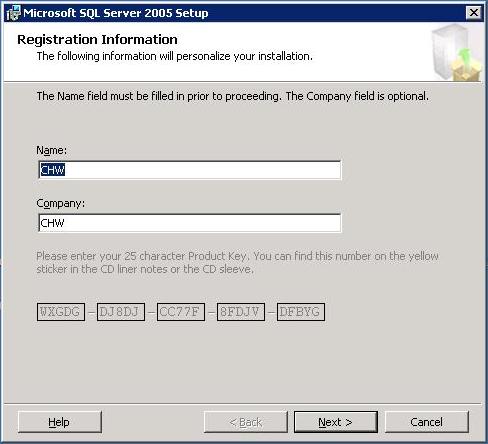
The program will the prepare the installer program and then present the Registration Screen.
Click on the [Next] button to continue.
-
When the Components To Install screen appears, check only the checkbox for Workstation components, Books Online, and development tools.
Click on the [Next] button to continue

-
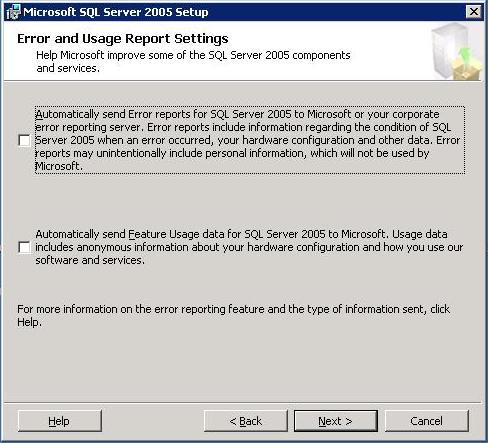
You will then be presented with the Error and Usage Report Settings screen.
Select what you feel appropriate and then click on the [Next] button to continue.
-
You will then be presented with the Ready to Install screen.
Verify that you are ONLY installing the Client Components and click on the [Install] button to continue.

-
SetUp will now install the client utilities and tools.
When setup finishes, click on the [Next] button to continue
You should repeat this process for EACH of the cluster nodes to ensure that all the nodes have the WorkStation Utilities and tools installed locally.

-
Once the SetUp Summary screen has been displayed, click on the [Finish] button to continue

-
After you have completed the installation of the WorkStation Utilities and tools, you will need to
Apply the Service Packs to each of the nodes.